

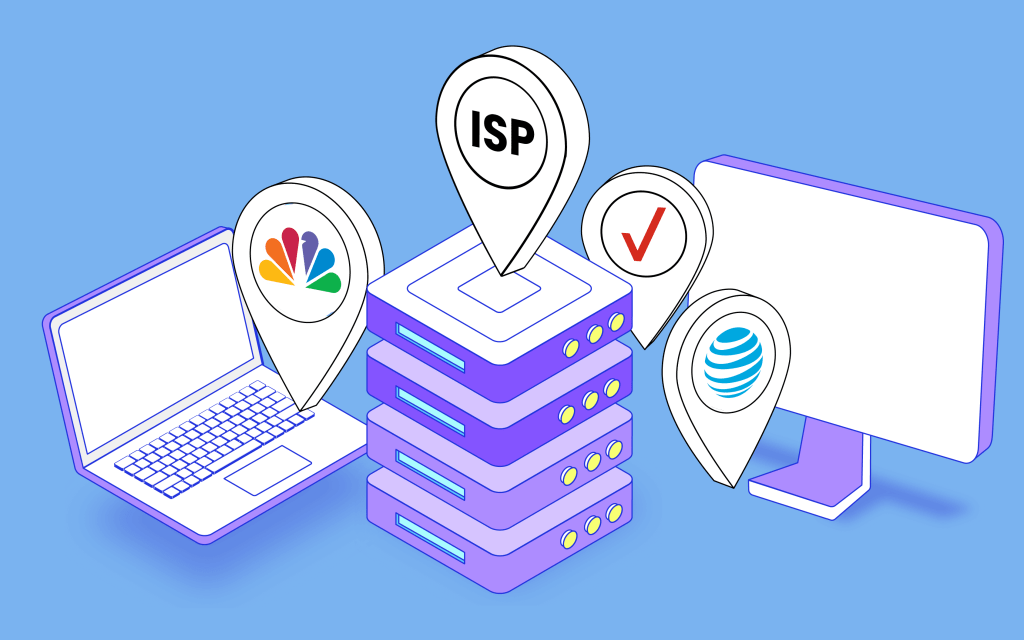
ISP Proxies are residential IP addresses obtained directly from Internet Service Providers (ISPs) but hosted on high-performance servers. This setup offers the authenticity of residential IPs combined with the speed and stability of dedicated servers. Ideal for high-speed, reliable connections, ISP Proxies enable users to access websites and collect data as a real user would, making them perfect for tasks requiring both high performance and anonymity.
This guide will walk you through purchasing and using Blurpath ISP Proxies.
1. Register for a Blurpath Account
To start using Blurpath ISP Proxies, you first need to create an account.
- Visit the Blurpath homepage.
- Click on the Start Free Trial or Sign Up button to register your account.
- Fill in your details and verify your email to activate the account.
2. Purchase Blurpath ISP Proxies Plan
After registration, log into your dashboard to select and purchase an ISP Proxies plan.
- From the dashboard menu, click ISP Proxies.
- Click on the Pricing tab to view available plans.
- Choose your desired proxy validity period, IP location region, and number of IPs.
- Click Continue to Checkout.
- Select your preferred payment method and enter any coupon code if you have one.
- Complete your payment to activate the proxies.
Supported payment methods include:
- Wallet balance
- Credit/Debit card
- Cryptocurrency (multiple options)
- PayPal (subject to purchase limits)
- Alipay
3. Access Your ISP Proxies
Once purchased, you can view your proxies:
- Go to ISP Proxies > Proxy List in your dashboard.
- Here you will see:
- IP addresses and ports
- Proxy username and password
- Geographic location of the IPs
- Expiration dates
- Status of each IP
- Option to renew IPs
4. Using Blurpath ISP Proxies
You can test your ISP proxies with a simple cURL command:
curl -x IP:Port -U "USERNAME:PASSWORD" https://ipinfo.blurpath.com
Replace IP, Port, USERNAME, and PASSWORD with your proxy details.
5. Integration Example: Using Blurpath ISP Proxies with AdsPower
Step 1: Create a new profile in AdsPower by clicking New Profile.
Step 2: Scroll to the proxy configuration section and:
- Set Proxy Mode to Custom.
- Choose HTTP as the proxy protocol.
- Enter your Blurpath proxy IP and Port.
- Enter the proxy username and password.
Step 3: Click Check Proxy to verify connection. If successful, save the profile and start browsing.
Additional Support
Blurpath provides 24/7 customer support. For assistance, contact support@blurpath.com.
You can also explore our detailed tutorials and documentation for integrating Blurpath ISP Proxies with various third-party tools on our website.
Frequently Asked Questions
What is an ISP Proxy?
ISP proxies are residential IP addresses provided by Internet Service Providers but hosted on servers for enhanced speed and stability.
What is the difference between residential proxies and ISP proxies?
Residential proxies use IPs assigned to actual home users, often through devices like routers. ISP proxies, while also residential IPs, are hosted on dedicated servers, offering higher reliability and faster connections, making them better for demanding applications.

 Global Residential Proxies by Proxyxyz
Leave a comment